 Songbrew
 guide · Page 3 of 5
Takes, redoing a part, restyling, and editing the lyrics
A song rarely comes out right the first time, and Songbrew never throws a version away. Every try is a take of the same song, numbered, so you can compare them and keep the best.
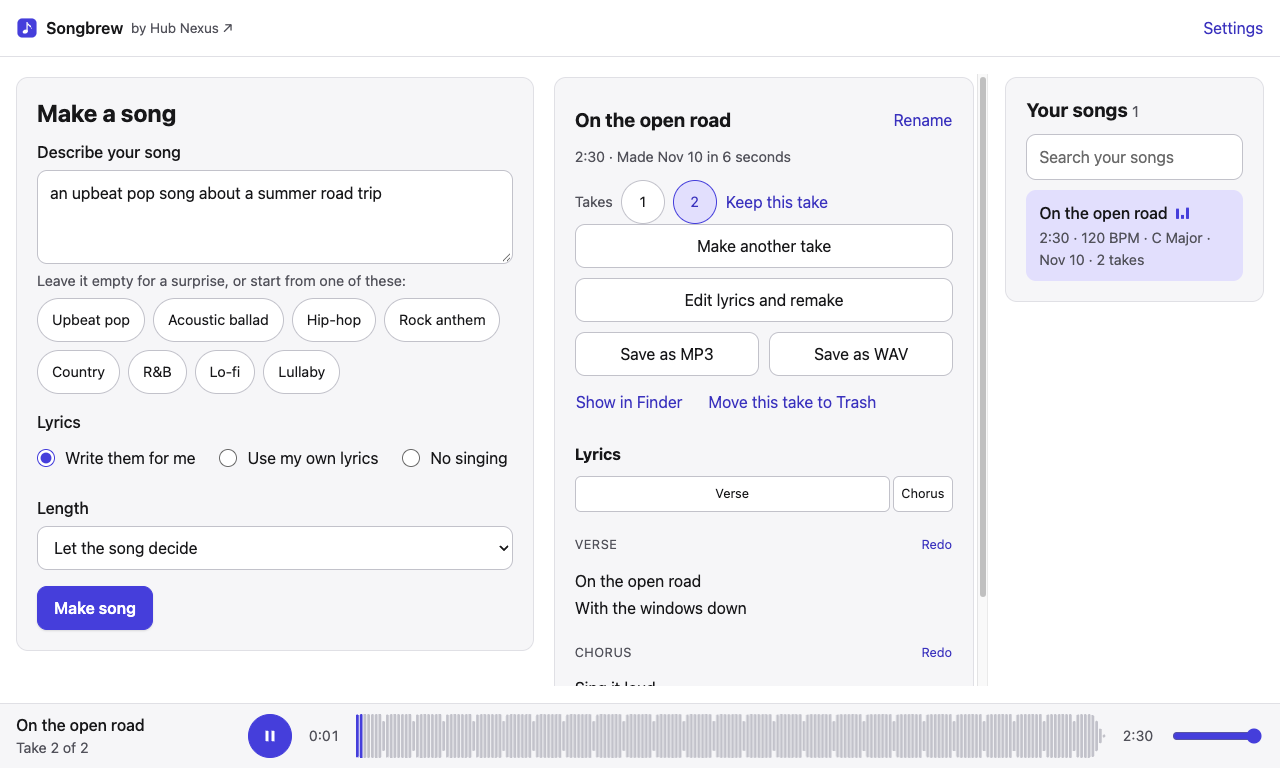
Another take
Press Make another take. Songbrew makes the same song again, with the same words, style, tempo and key, and a new performance. The takes appear as numbered buttons under the song's title. Press one to switch: the other take plays on from the same moment, so you can compare the two at one spot. Keep this take stars the one you like; the star shows in the list and on the take's button.
To drop a take, press Move this take to Trash. It goes to the computer's Trash, so you can bring it back.
Redo one part
When one verse or chorus is the problem, you don't need a whole new song. Beside each part's name in the lyrics there is a Redo button. Press it and Songbrew makes that part again, keeping the rest of the song as it was, and saves the result as a new take. It then plays from just before the part, so you hear the change at once.
Redo is available once the song's lines have been timed, which happens shortly after the song is done (about twenty seconds on a Mac, sooner on a PC). A redone part fits in most of the time; if it doesn't, redo it again or pick another take. One song or redo is made at a time.
Restyle
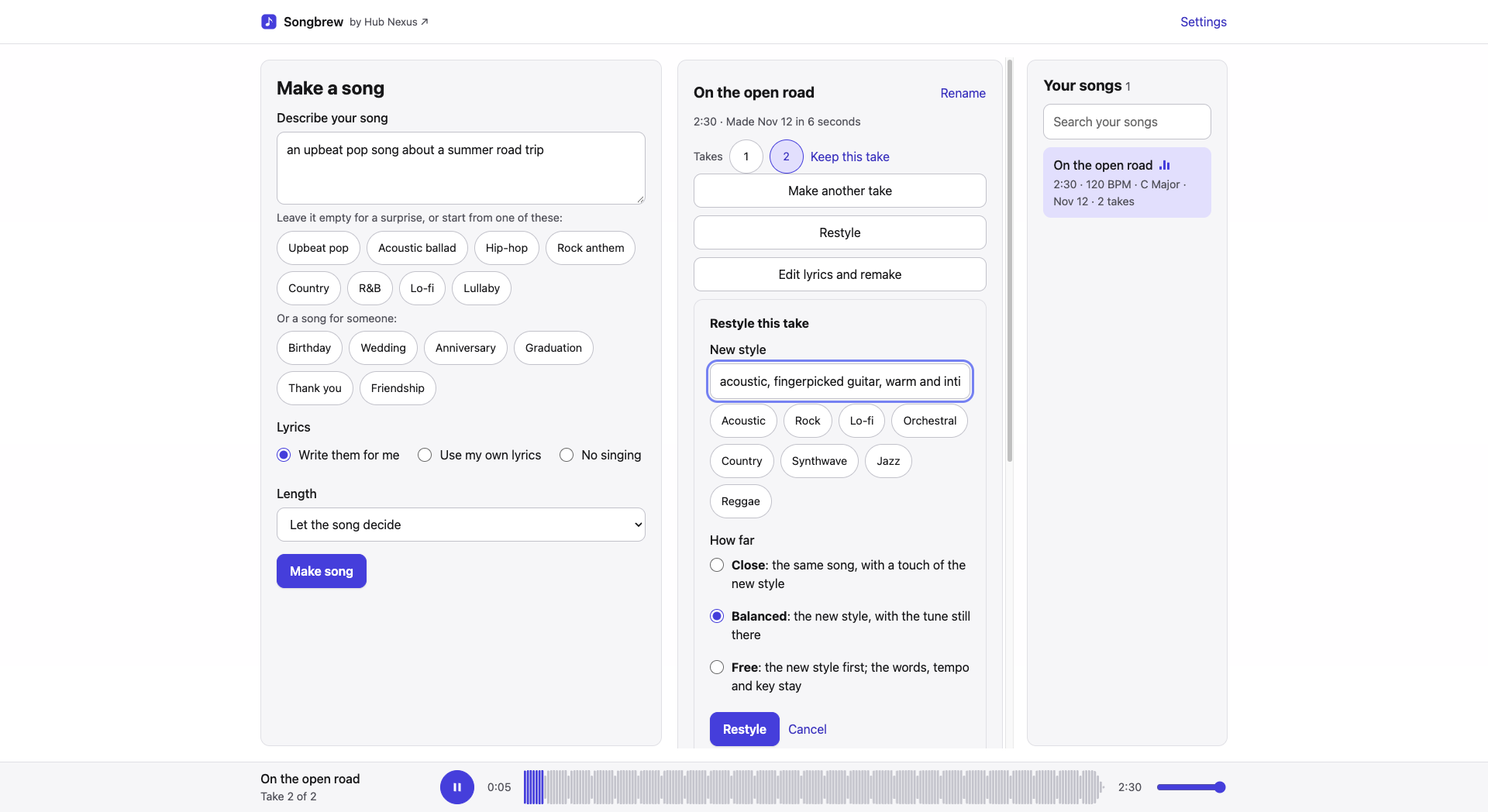
To hear the same song in another style, press Restyle. Type the style you want, such as "acoustic folk with fingerpicked guitar", or press one of the styles under the box (Acoustic, Rock, Lo-fi, Orchestral…). Then choose how far it goes:
- Close keeps the song as it is, with a touch of the new style.
- Balanced moves to the new style, with the tune still there.
- Free puts the new style first.
Press Restyle. The words, tempo, key and length stay the same, and the restyled version is saved as a new take, so the original is still there to compare. How it was made says which take it came from, in which style and how far.
Change the words
Edit lyrics and remake puts the song's idea and lyrics back into the form on the left. Change what you like and press Make song: this makes a new song, with the words sung as you wrote them.
Rename a song
Press Rename beside the title. Every take of the song takes the new name.